Requirements
Before you attempt to book an appointment, you must make sure that you have done the following:
When you have met all the requirements, you can book a new appointment from the Appointments page:
Click New in the top left-hand corner.
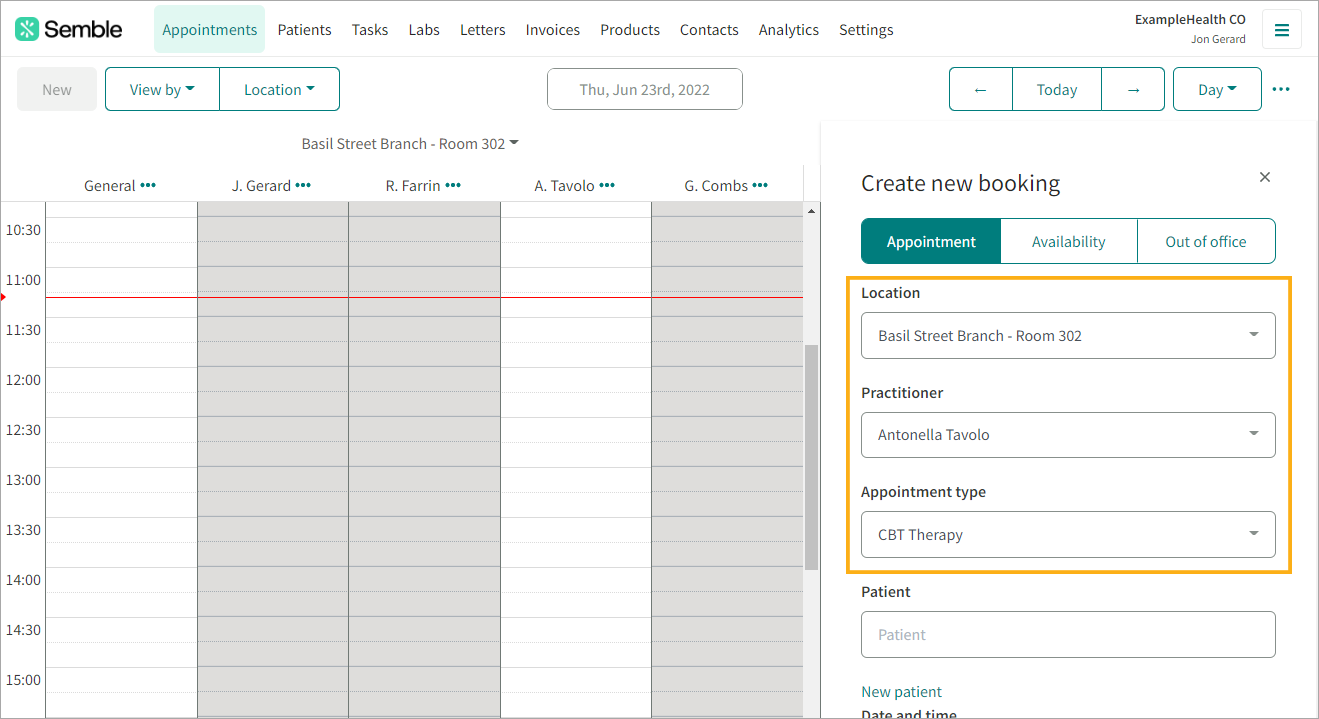
Note: The New appointment window opens.
Use the following dropdown menus to select the basic details of the appointment:
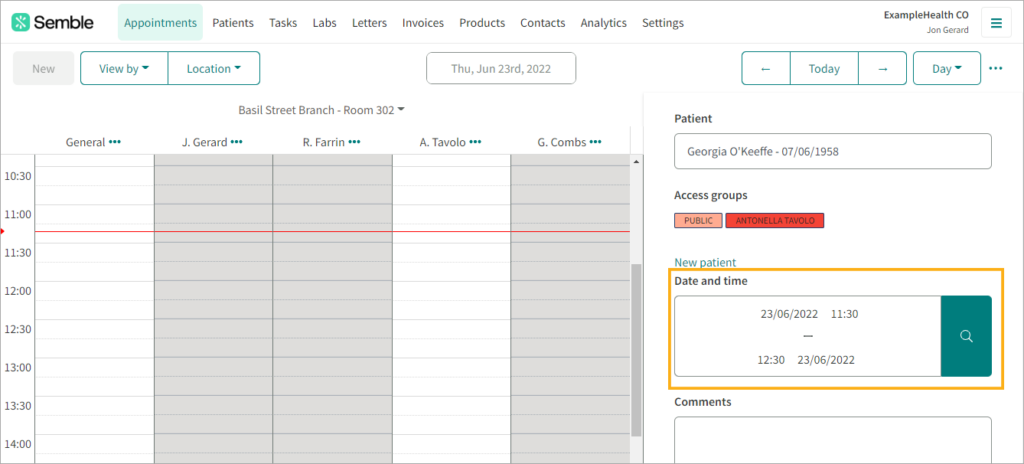
Select the patient who you want to make the appointment for. You can also select New patient to create a new patient for the appointment.
Choose a time by clicking on the dates and times in the Time box.
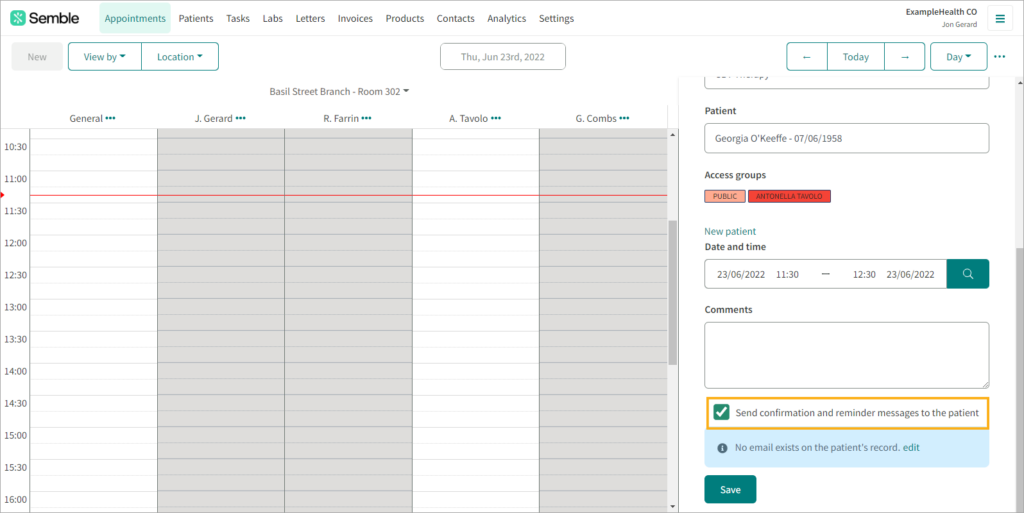
(Optional) Type any comments that you want to note for the appointment.
Choose whether you want to Send confirmation and reminder messages to the patient.
For more information on this, see here
Click Save.
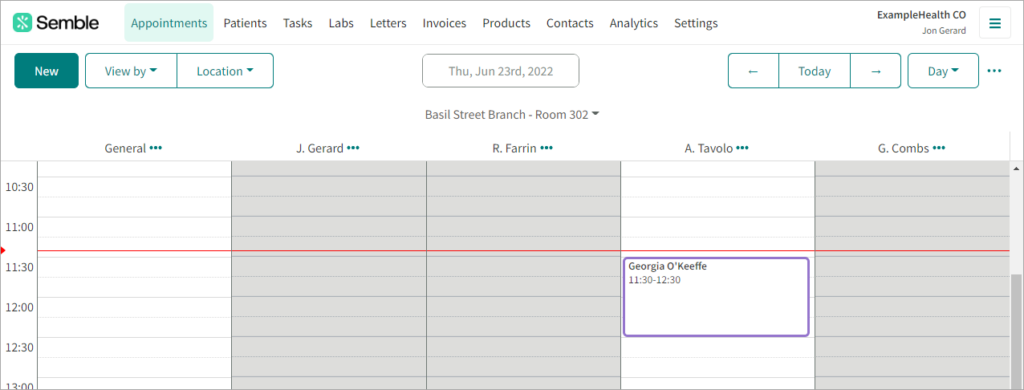
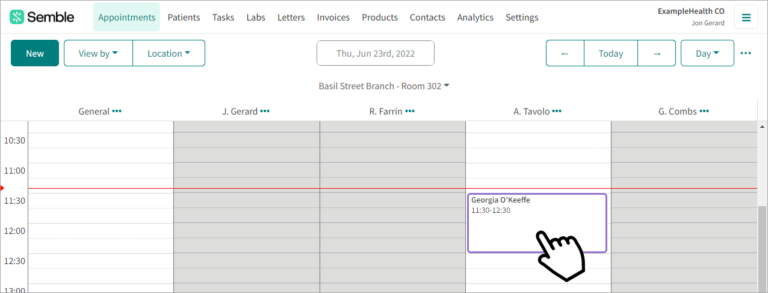
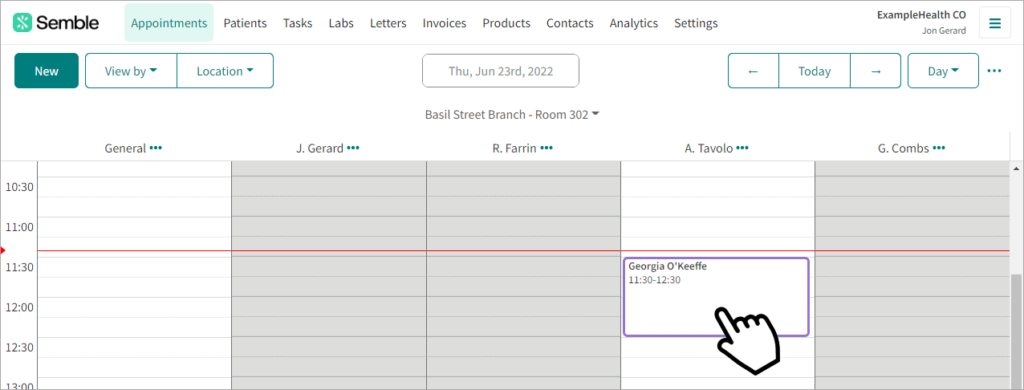
The appointment appears in the Appointments calendar:
You can edit or cancel the appointment at any time.
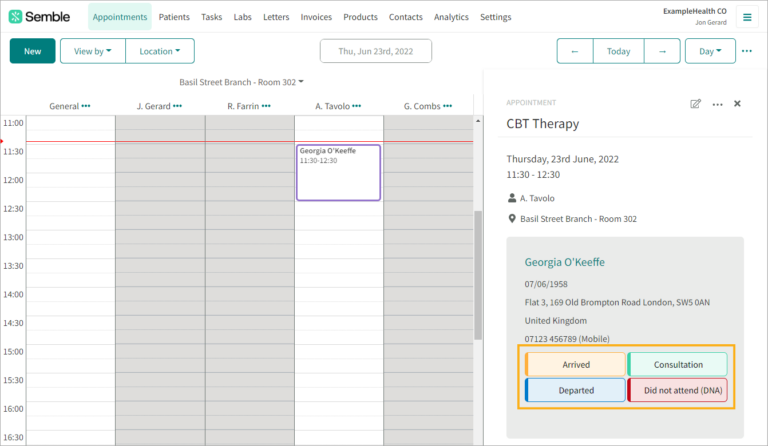
When an appointment has been made, you can update the patient’s journey (such as marking the patient as having arrived) from the Appointments page:
Select the appointment from the Appointments calendar.
The appointment window opens.
Choose one of the coloured options below the patient’s information.
Note: The status automatically updates. You can revert the status update at any time by clicking the same option again.
You can edit an appointment at any time from the Appointments page:
Select the appointment you want to edit from the Appointmentscalendar.
Click the edit icon in the appointments window.
Make the edits you want.
Click Save at the bottom of the appointments window.
For more support please feel free to contact us here