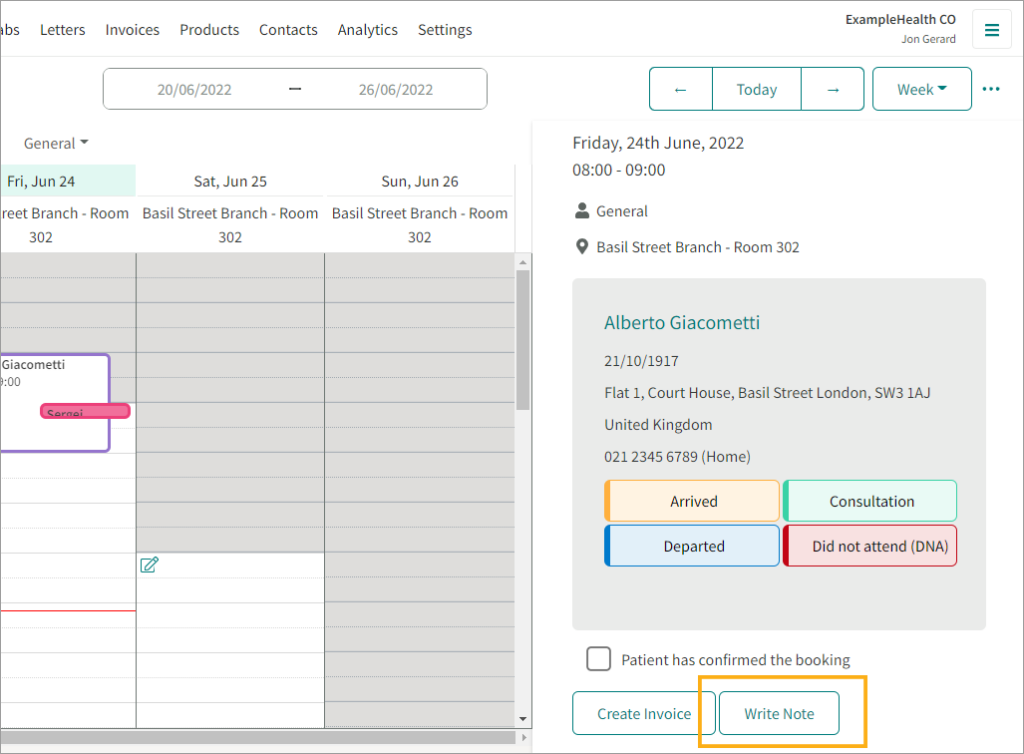
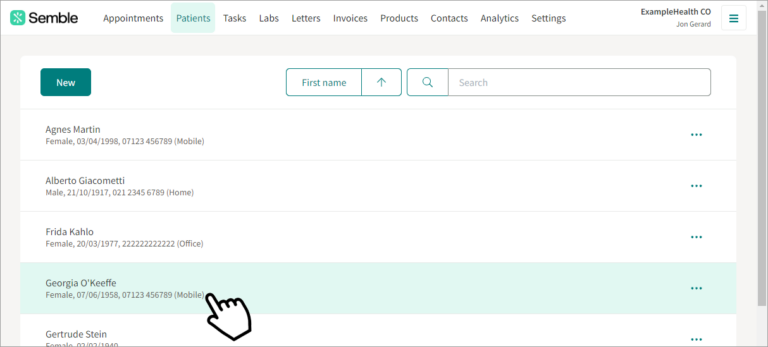
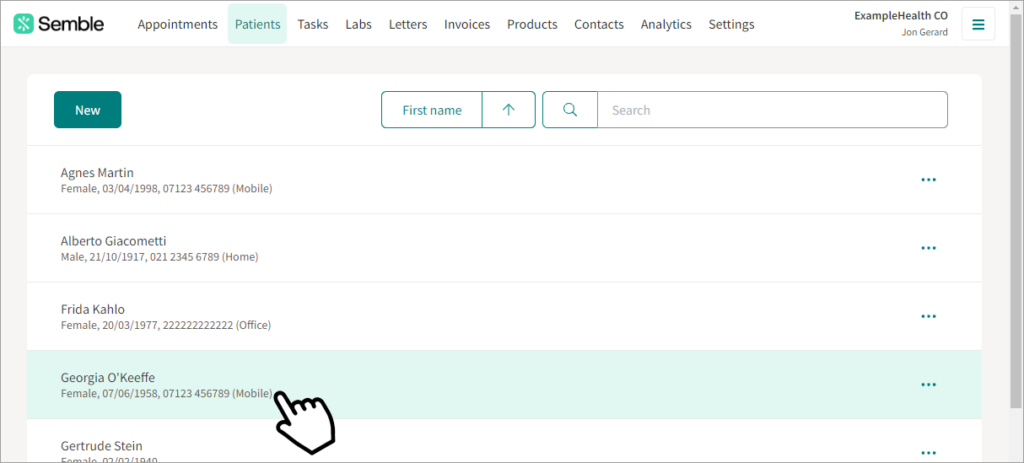
Once your patient arrives, mark them as arrived (explained in Update Patient’s journey), and enter their patient records by clicking their name above the coloured options highlighted below.
Alternatively there is a shortcut for writing consultation notes for an appointment or consultation in the Appointments calendar.
Click Write Note in the appointment window.
You are redirected to the patient’s record.
Otherwise go to the Consultations tab.
Click New
Select the type of consultation that these notes will refer to, and the date that the consultation took place.
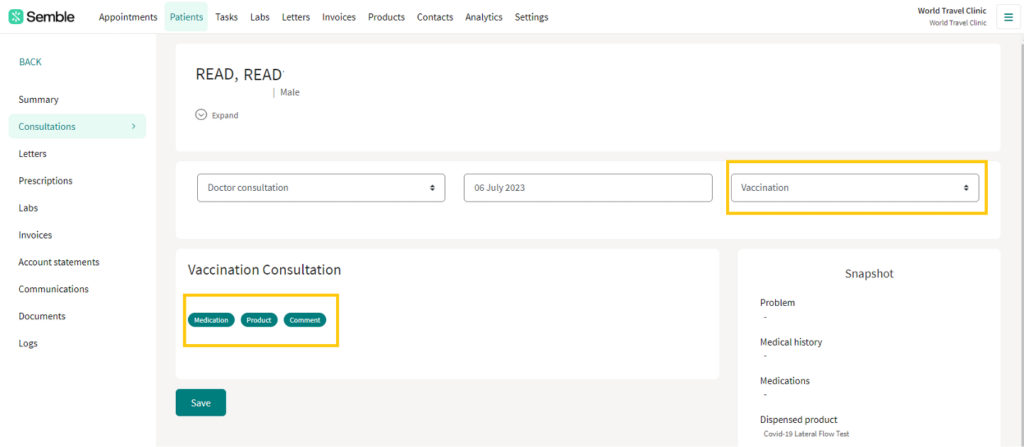
Choose whether you want to use a configured template for your notes. Select Vaccinaton for logging products.
Then select Product.
Choose whether you want to use a configured template for your notes. Select Vaccinaton for logging products.
Then select Product.
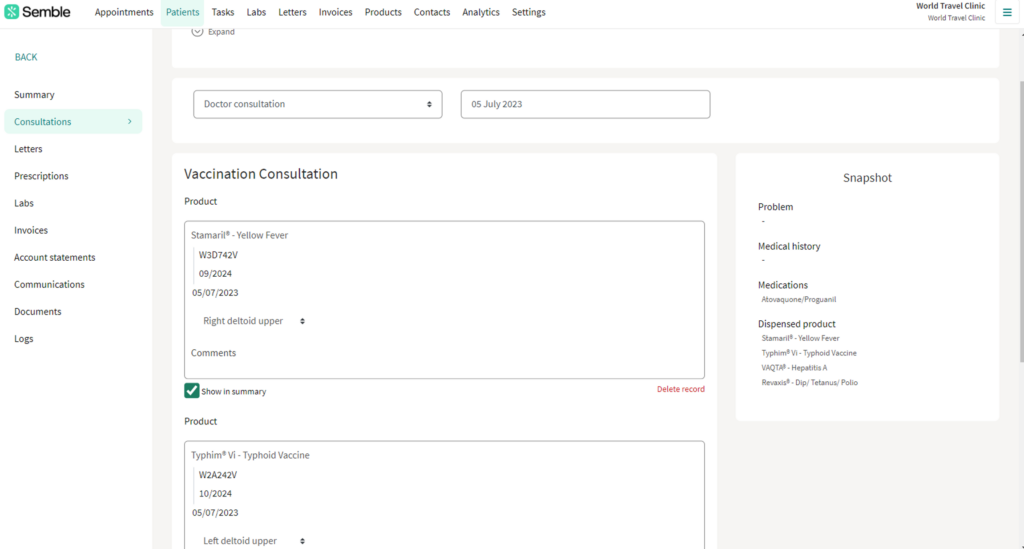
Select the product the patient is set to receive by typing in the product, it will appear in the list. Then add the batch code of the vaccine, the location of the injection and the date of administering.
Fill out the consultation notes as you want regarding the patient. If you need to remove a section, you can click Delete record.
Choose whether you want each section to show in the patient’s summary page.
Click Save at the bottom of the page.
The consultation notes appear in the patient’s Consultations tab. Information from the consultation notes will also appear in the patient’s Summary tab if you selected Show in summary for any of the sections that you filled out.
N.B. When you create consultation notes for a patient, Semble automatically saves a draft while you work.
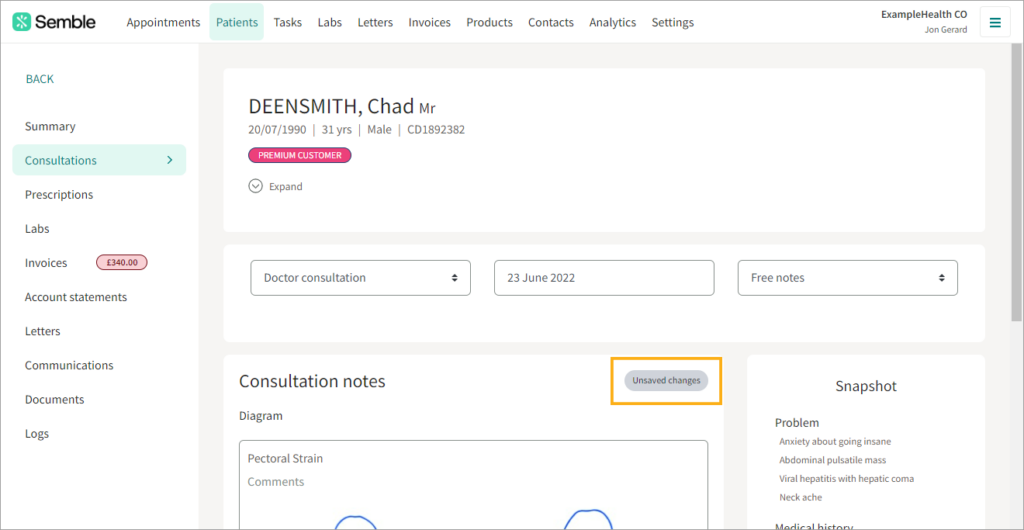
If you lose connection, accidentally close Semble, or click away while creating consultation notes, you can find the saved draft by clicking New in the patient’s Consultations tab. The saved draft appears, and is marked with an Unsaved changes tag:
Note: Drafts will only appear for the user who was writing them, on the device that they were writing on and within the same browser. If for example, you are working on one device, lose connection and then login to Semble on another device then you will not see these unsaved changes, or if another logs in and tries to access your notes this will not appear.
Edit Consultation notes
Note: Before you attempt to edit consultation notes, you must first make sure that your practice has consultation note editing enabled. For more information, see here.
You can edit consultation notes from the Patients page:
Select the patient who you want to edit.
Go to the Consultations tab.
Click the drop down arrow next to the consultation that you want to edit.
Select Edit
Make the changes you want.
Click Save at the bottom of the page.
Delete Consultation notes
Note: Your clinic must have consultation note editing enabled from your clinic’s Medical settings. For more information, see here.
You can delete consultation notes from the Patients page:
Select the patient who you want to edit.
Go to the Consultations tab
Click the drop down arrow next to the consultation that you want to delete.
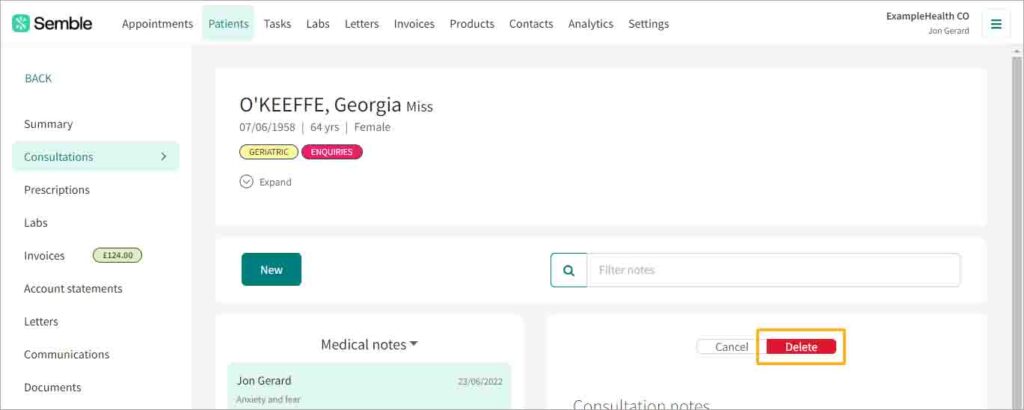
Select Delete
Click Delete to confirm.
For more support please feel free to contact us here