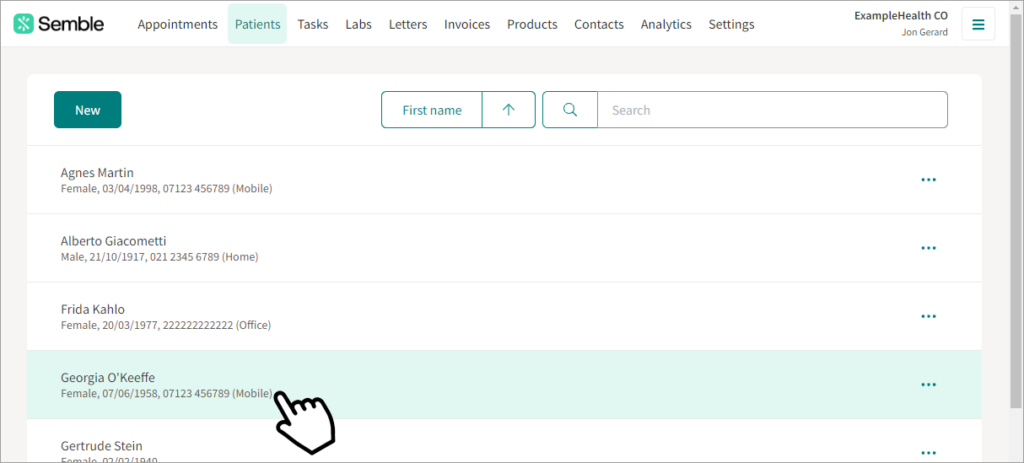
Select the patient who you want to create a letter for.
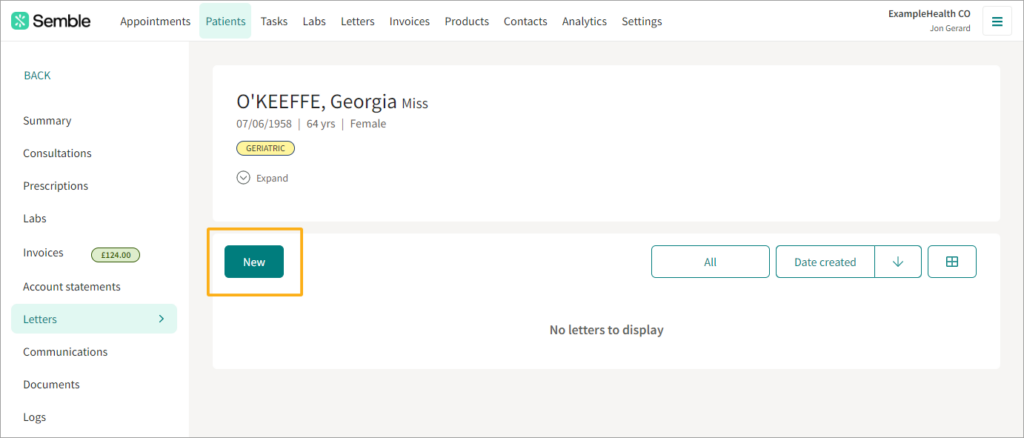
Go to the Letters tab
Click New
Enter the basic details of the letter:
Status (optional): Choose the draft status of the letter
Subject: The title of the email
Recipient: Choose whether to send the email to an external contact
The patients GP surgery will be available through their questionnaire and the GP directory.
Copied in recipients (optional): Add the automated details of other recipients to a letter.
For more information on how to fully set this up, see here
Location (optional): Include the origin location of the letter. This will not appear on the actual letter
Practitioner (optional): Include the practitioner associated with the letter. This will not appear on the actual letter
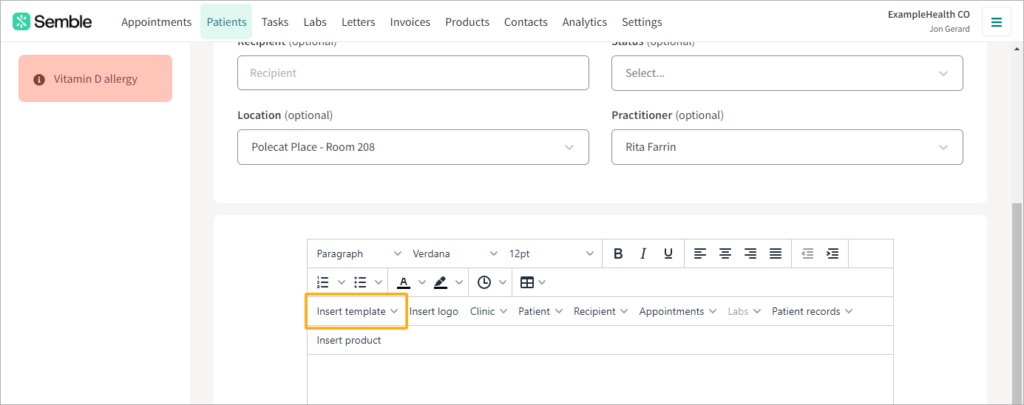
Choose whether you want to use a letter template, using the Insert template dropdown in the text editor.
For information on how to create letter templates, see here
Write the letter by typing into the text editor. You can also insert automatic tags (such as the patient’s name, and your practice’s logo) by clicking the buttons at the top of the text editor.
For information on how to get the best experience with the text editor, see here.
Click Save
Share a Letter
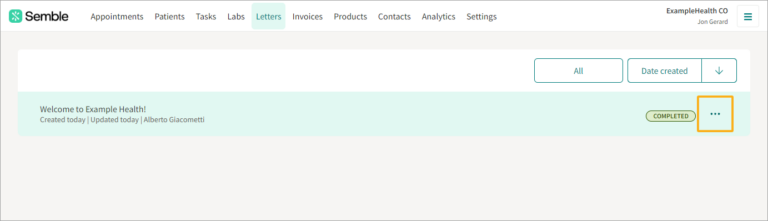
You can share a letter at any time from the Letters page:
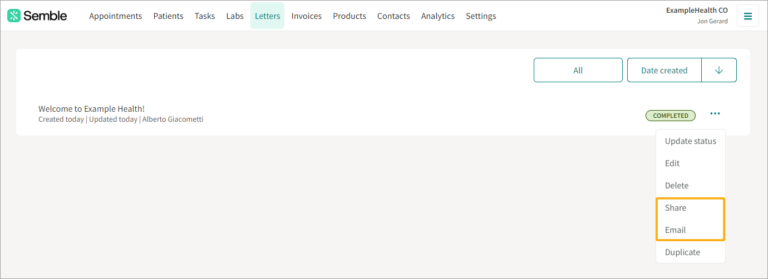
Click the more options icon next to the letter that you want to edit.
Select either Share or Email
Share: Send the letter as a secure link to either the patient or to an external contact of theirs
Email: Send the letter as an email to anyone
The Patient’s GP surgery should be available via the GP
Edit a Letter
You can edit a letter at any time from the Letters page.
For information on how to update a letter’s status, see here.
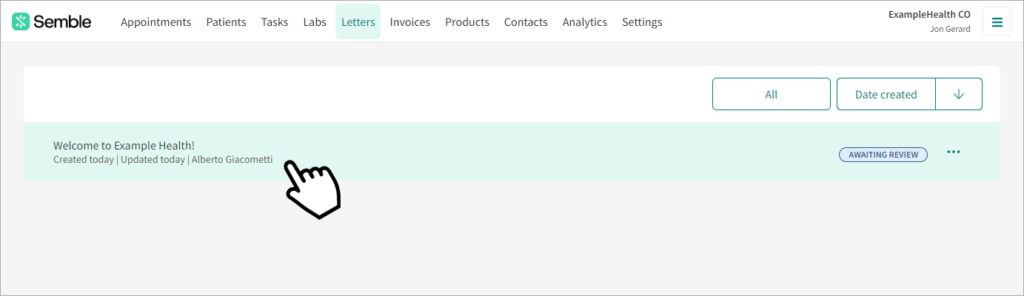
Select the letter that you want to edit.
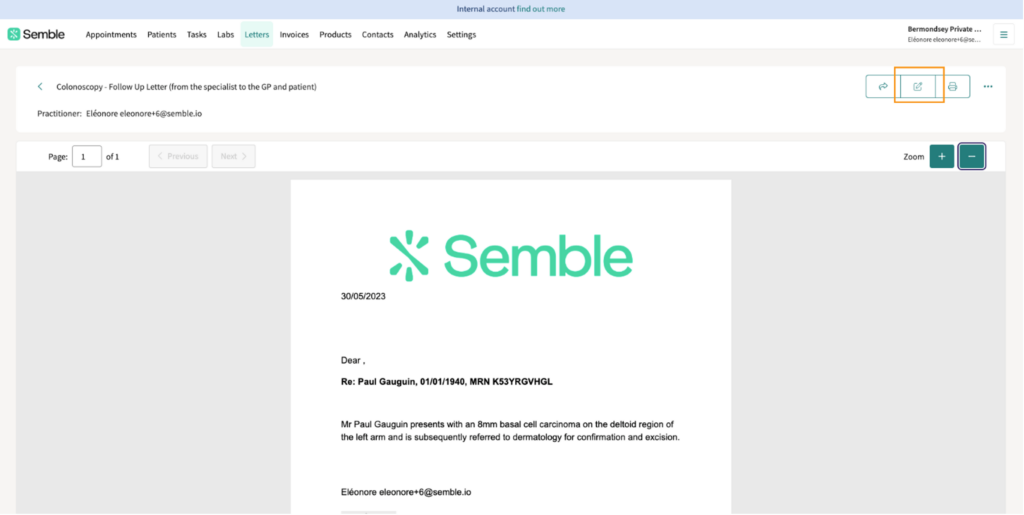
Click the Edit icon in the top right-hand corner
Make the edits you want.
Click Save at the top of the page.
For more support please feel free to contact us here